Smart Home WiFi: Why Your Devices Keep Going Offline (And How to Fix It)
Zak
1 November 2026
→ Get WiFi Your Smart Home Can Rely On
The doorbell rings and the app shows nothing. The camera missed the delivery. The smart plug has vanished again.
It's easy to blame the device, but most smart home problems are really WiFi problems. With the average UK home now running 16 connected devices, and 1 in 10 homes running over 30, plenty of routers are being asked to do far more than they were built for.
Here's why smart devices drop off, and how to stop it.
Key Takeaways
- Most smart devices use 2.4 GHz, a crowded band
- Doorbells and cameras often sit at the very edge of your WiFi
- Boosters can make smart devices less reliable, not more
- Cameras need steady upload speed, not just download
- Keeping smart devices on a separate network improves security
- Reliable coverage solves most problems

Why Smart Devices Keep Going Offline
They're at the edge of your WiFi
Doorbells sit on the outside of the house. Cameras go in garages and on back walls. Your WiFi is at its weakest in exactly the places smart devices tend to be fitted, and a signal that's fine for a phone may be too weak for a tiny aerial in a doorbell.
They're stuck on 2.4 GHz
Many smart devices only use 2.4 GHz. It reaches further than 5 GHz, but it's slower and busy with neighbours' networks, Bluetooth and baby monitors. Newer WiFi 7 features won't help a smart plug that can only use 2.4 GHz.
Your router is overloaded
ISP routers are built to a price. They may handle a few phones and laptops fine, then struggle when you add cameras, speakers, bulbs and plugs on top. Devices start getting pushed off, usually without any warning.
A booster is in the way
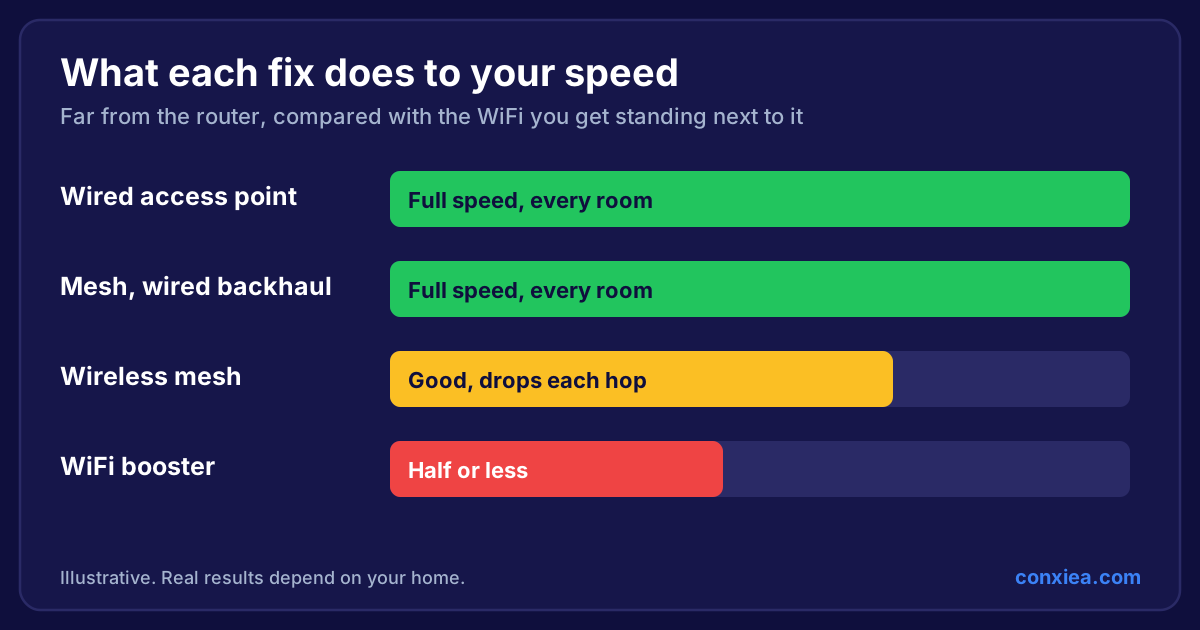
Smart devices are simple, and they don't handle changes well. A booster that drops out or changes channel can leave them stranded until someone reboots them. That's one of the less obvious downfalls of WiFi boosters.
Cameras need upload speed
Most broadband is built for downloading. Video cameras do the opposite, sending footage out. Several cameras running at once can use more upload than people expect, especially on part-fibre broadband.
How to Fix Smart Home WiFi
1. Check the signal at the device
Stand next to the device with your phone. If WiFi is weak there, that's your answer. Many device apps also show a signal reading.
2. Move the router if you can
Getting it out of a cupboard and away from the TV can help. It's free and takes minutes. It won't fix a whole house, but it's worth trying first.
3. Fit an access point near the problem
For doorbells and outdoor cameras, the answer is usually an access point close by, connected by cable. Now the device has a strong local signal, rather than one that's been through three walls.
4. Keep one network name
Some people split 2.4 GHz and 5 GHz to get smart devices connected. A properly set-up system handles this for you, and many apps cope better with one stable network that doesn't keep changing.
5. Use cable where you can
Anything that doesn't move, such as a TV, console or smart home hub, is better on a cable. It frees up WiFi for the devices that can't be wired. Our home network build guide covers how to plan this.
Keep Your Smart Home Secure
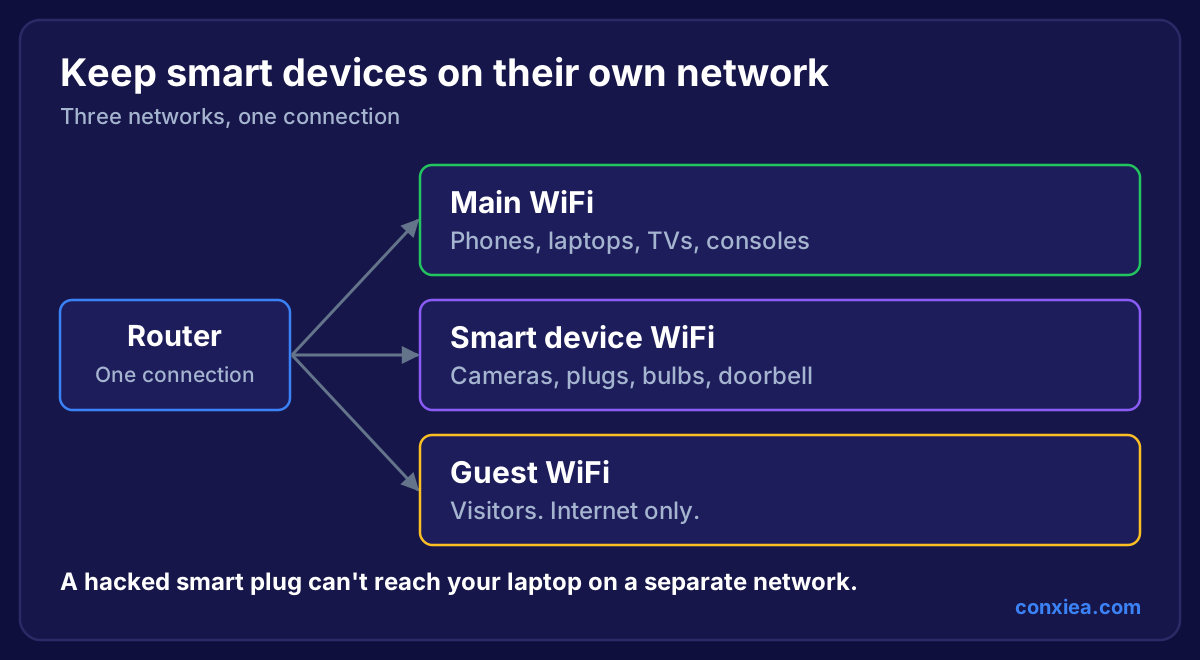 Diagram showing a router providing three separate networks: main WiFi for phones and laptops, smart device WiFi for cameras and plugs, and guest WiFi for visitors
Every smart device is a small computer on your home network, and some don't get many security updates. So it makes sense to keep them away from your laptops and phones.
The simple way is a separate network for smart devices. If a cheap plug is compromised, it can't reach your personal files.
The NCSC's advice for smart devices is straightforward:
- Change any default password to a strong, unique one
- Use three random words to build a strong password
- Turn on two-step verification where offered
- Switch on automatic updates
- Treat the end of a device's support like a "use by" date
UK law helps too. Under the product security regime, manufacturers of consumer smart products have had to follow minimum security rules since April 2024, including no universal default passwords. Older devices you already own won't have that protection.
For the full list, read our 12 home network best practice rules.
What's Next: WiFi Sensing and Matter
Two trends are worth knowing about.
Matter is a shared smart home standard designed so devices from different brands work together. It can run over WiFi, so reliable coverage matters even more.
WiFi sensing uses the WiFi signal itself to detect movement, with no camera involved. The IEEE published the standard for it in September 2025. It's early, but it's one of the most surprising things WiFi can do.
Both depend on the same thing: strong, stable WiFi around your whole home, and out to the garden if you've got cameras or lights there.
Frequently Asked Questions
Why does my Ring doorbell keep going offline?
The usual cause is weak WiFi at the front door. Doorbells are outside the house, so the signal has to get through your outside wall. A nearby access point normally fixes it.
How many devices can home WiFi handle?
It depends on the kit. ISP routers vary, and many struggle well before any official limit. Access points handle busy homes much better because they share devices between them.
Do smart devices need 5 GHz?
Most don't. Many only use 2.4 GHz. What they need is a strong, steady signal.
Should I put smart devices on a guest network?
A guest network is a good simple option. A dedicated smart device network is better, because you can manage it separately.
Tired of rebooting your smart home?
We fit proper access points so your doorbell, cameras and devices stay connected, then test every room before we leave. One fixed price, no extenders, and if it isn't fixed, you don't pay. We cover homes across the South West.
→ Get Home WiFi Installed Properly
Or speak to a local home WiFi installer about your setup.