Home Network Best Practice: 12 Rules for Fast, Secure WiFi
Zak
20th October 2026
Most home WiFi problems aren't caused by bad equipment. They're caused by equipment set up in a way that works against itself.
These 12 rules are the same principles we follow on every home WiFi installation, adapted from the way business networks are built. Follow them and your network will be faster, safer and far less frustrating.
 Engineer smiling beside a newly installed ceiling WiFi access point
Key Takeaways
- Use cables wherever you can, and WiFi only where you need it.
- One network name across the house, with strong WPA3 security.
- Keep visitors and smart devices off your main network.
- Keep everything updated, and change default passwords.
Coverage and Performance
1. Cable what doesn't move

TVs, games consoles, desktop computers and the home office PC should be plugged in with a network cable where possible. Our guide to building your own home network shows how to plan the cable runs. They get a faster, more stable connection, and every wired device leaves more WiFi capacity for phones and laptops.
2. Put WiFi where people actually are
Place access points centrally, on ceilings, in the areas you use most. A router in a cupboard by the front door sends half its signal out into the street. See How to Get WiFi in Every Room for how to plan placement, and Extender vs Mesh vs Access Points to choose the right kit.
3. Use one network name for the whole house
Every access point or mesh unit should broadcast the same name and password. Separate names, like "Home_EXT" or "Upstairs", make devices cling to the wrong one as you move.
4. Don't turn everything up to maximum
It feels logical to set every access point to full power, but it often makes things worse. Devices hear a distant access point loudly and refuse to move to the closer one. Balanced power gives smoother roaming.
5. Avoid extenders for whole-home coverage
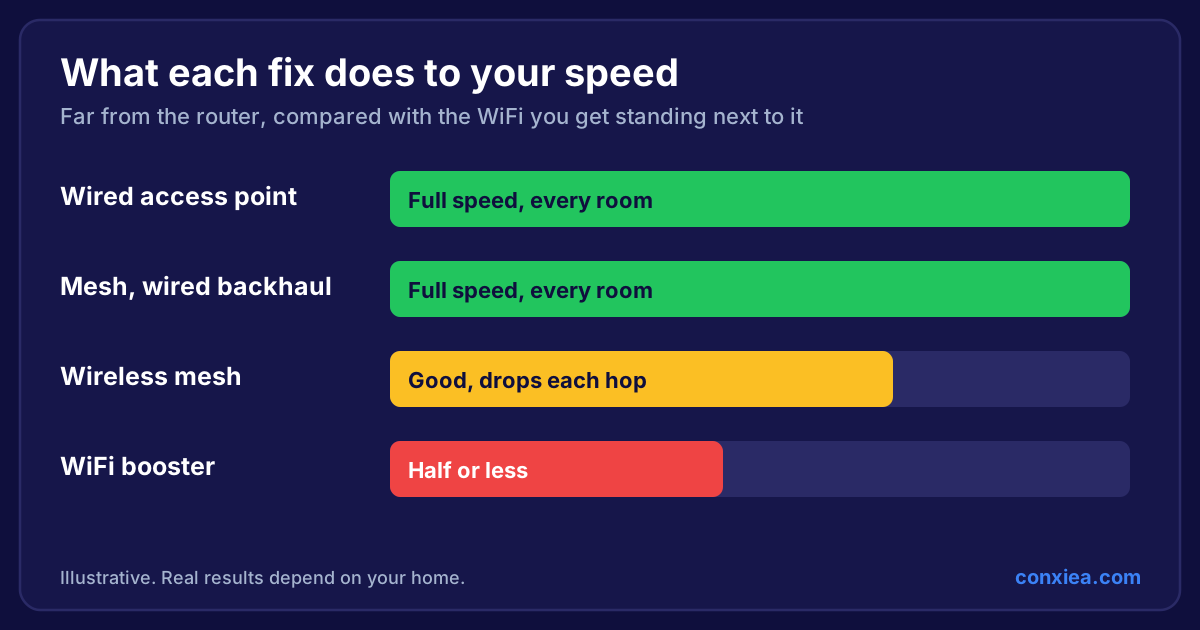
Extenders repeat a weak signal and can halve your speed. For reliable coverage, connect WiFi points back to the router by cable. See Why WiFi Extenders Don't Work.
6. Turn off WiFi you're not using
If you've added access points, switch off the WiFi on your ISP router. Two systems broadcasting in the same space compete with each other.
Security

7. Use WPA3 and a strong password
Use WPA3 security where your equipment supports it, or WPA2/WPA3 mixed mode for older devices. Never use WEP or an open network. Choose a long passphrase: several random words are stronger, and easier to share, than a short jumble of characters.
8. Change every default password
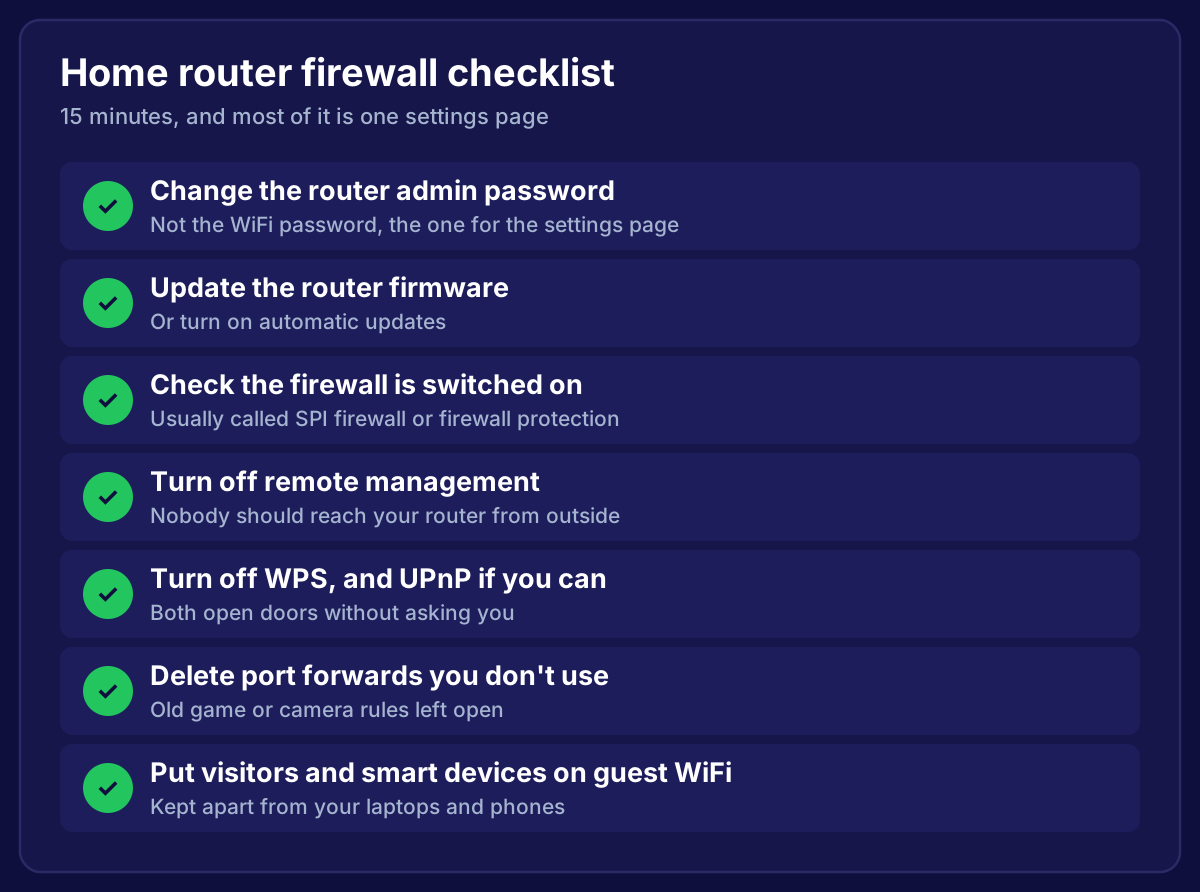
Change the admin password on your router, access points and any network equipment. Default passwords are often printed on the box, or published online.
9. Give guests their own network
A guest network lets visitors online without access to your computers, printers or shared files. Most routers and access point systems can create one in a few clicks.
10. Put smart devices on a separate network
Smart plugs, cameras, doorbells, TVs and speakers are convenient, but they don't always get security updates. A separate network for smart devices (often called an IoT network) keeps them away from your laptops and phones. If one is compromised, the damage stays contained.
Maintenance
11. Keep firmware up to date
Router and access point updates fix security holes and often improve performance. Turn on automatic updates where available, or check every few months.
12. Know what's on your network
Check your router or management app now and then for devices you don't recognise. Remove old devices, and change the WiFi password if you've shared it widely.
A Quick Best-Practice Checklist
| Check | Why it matters |
|---|---|
| Fixed devices wired | Faster, frees up WiFi |
| Access points central and on ceilings | Even coverage |
| One network name | Smooth roaming |
| ISP router WiFi off (if using access points) | No interference |
| WPA3 security | Protects your network |
| Default passwords changed | Stops easy access |
| Guest network set up | Keeps visitors separate |
| Smart devices on their own network | Contains risk |
| Firmware up to date | Security and stability |
Frequently Asked Questions
Is WPA2 still safe?
WPA2 with a strong password is still reasonably secure, but WPA3 is better. Use WPA3, or a WPA2/WPA3 mixed mode if some of your devices are older.
Should I hide my WiFi network name?
No. Hiding the name doesn't add real security, because it can still be found, and it can cause connection problems for some devices.
Do I need a separate network for smart devices?
It's good practice, especially if you have cameras, doorbells or lots of smart plugs. It keeps less secure devices away from your computers and phones.
Where Conxiea Fits
We design and install home networks that follow these rules out of the box: tidy cabling, ceiling access points, one network name, and separate guest and smart-device networks. It's one fixed price with a no-fix, no-fee guarantee, for homes across the South West.