Configuring a Firewall: A Step-by-Step Guide for Small Businesses
Zak
8 November 2026
→ Get Your Firewall Configured Properly, Book a Free Consultation
Most small businesses have a firewall. Far fewer have one that's been configured.
The box gets plugged in, the internet works, and nobody touches it again. That works right up until someone finds the admin page open to the internet, or an old port forward still pointing at a PC that left years ago.
Configuring a firewall properly isn't complicated, but the order matters. This is the order we follow for clients, from a blank box to a firewall you can trust.
Key Takeaways
- Plan before you touch the firewall. Write down what needs to talk to what
- Lock down the firewall itself first: firmware, admin accounts, MFA
- Split your network into zones so a guest or a camera can't reach your accounts PC
- Block all inbound traffic by default, and only open what has a written reason
- Filter outbound traffic too, not just inbound
- Use a VPN for remote access instead of port forwards
- Log, back up, test, and review every quarter
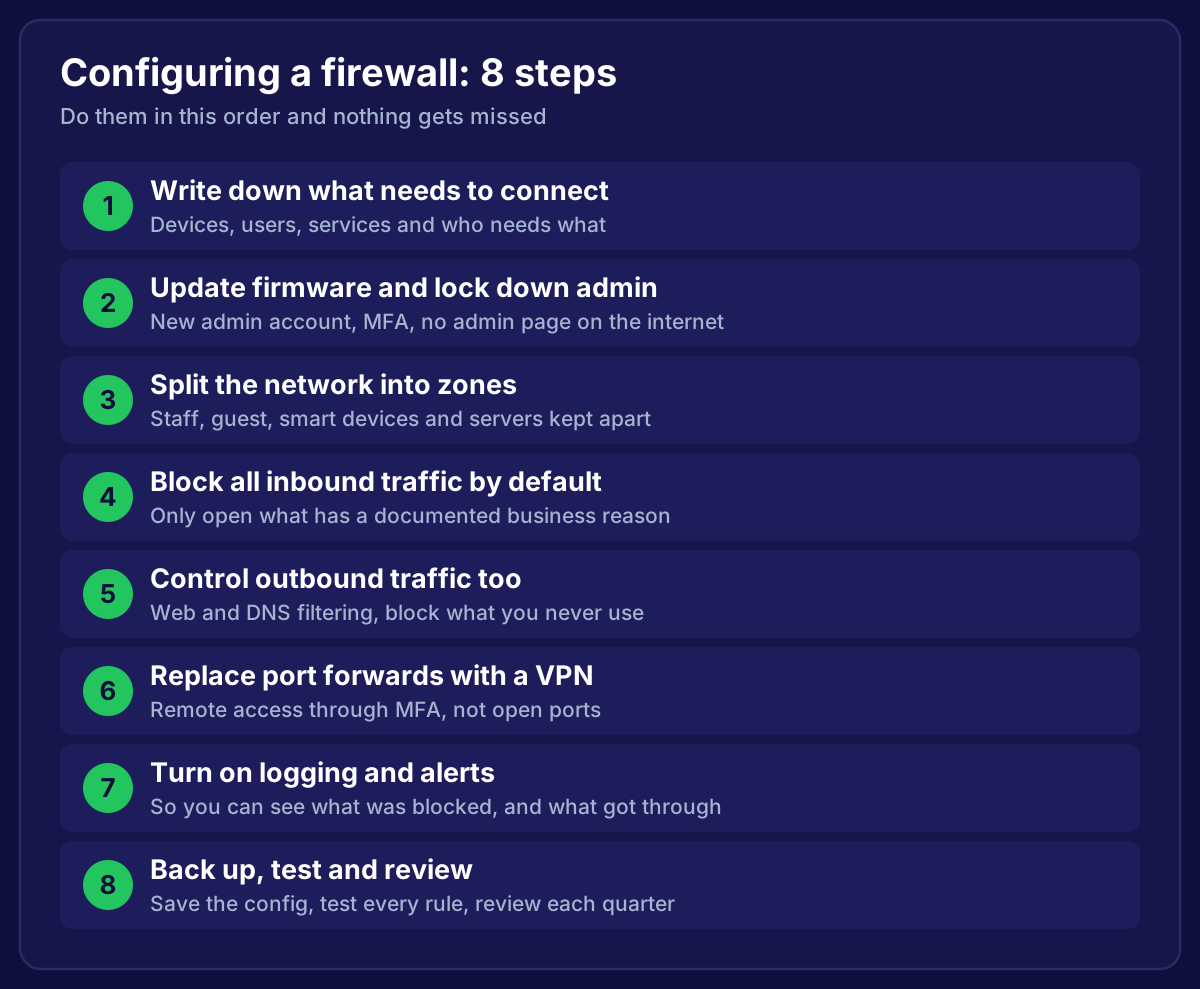 The eight steps to configuring a firewall: plan, lock down admin, zones, block inbound by default, control outbound, VPN instead of port forwards, logging, and back up and review
What a Firewall Actually Does
A firewall sits between networks and decides what traffic is allowed through. Usually that's between your office and the internet, but a good setup also controls traffic between parts of your own network.
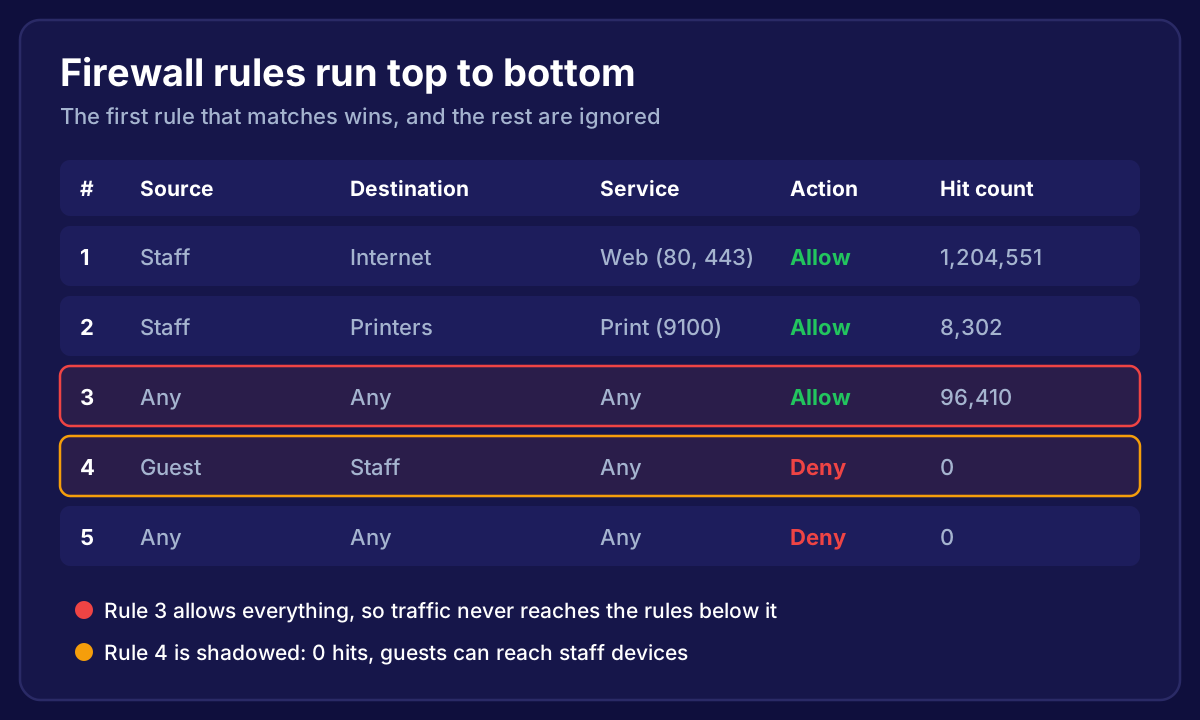
Every decision comes from a list of rules. Each rule says something like "staff devices can reach the internet on web ports" or "nothing from the internet can reach the office". The firewall reads the list from top to bottom and acts on the first rule that matches.
That means a firewall is only as good as its rules. A £2,000 firewall with an "allow everything" rule protects you less than a basic router.
Step 1: Write Down What Needs to Connect
Before you log in, spend half an hour with a notepad. List:
- Who uses the network: staff, visitors, contractors
- What connects: laptops, phones, printers, cameras, card machines, smart TVs
- What runs locally: a file server, a phone system, an NVR for CCTV
- What needs reaching from outside: remote workers, a supplier, a monitoring service
This list becomes your rulebase. Anything not on it shouldn't be allowed. Skipping this step is how firewalls end up with rules nobody can explain.
Step 2: Update the Firmware and Lock Down Admin Access
The firewall itself is a target. Attackers scan the internet constantly for firewall login pages and known holes in firewall software.
Before anything else:
- Update the firmware to the vendor's current recommended version
- Replace the default admin account with named accounts for each person who manages it
- Turn on multi-factor authentication for admin logins
- Make sure the admin page isn't reachable from the internet. If remote management is truly needed, restrict it to a short list of trusted IP addresses or put it behind the VPN
Cyber Essentials, the UK government-backed scheme, requires exactly this: changed default passwords, and no admin interface open to the internet unless it's protected by MFA or an IP allow list.
Step 3: Split Your Network Into Zones
A flat network is one where every device can see every other device. It's the default on most setups, and it's the reason one infected laptop can spread to everything.
Zones (usually VLANs) fix that. A typical small business layout:
| Zone | What's in it | What it can reach |
|---|---|---|
| Staff | Work laptops and desktops | Internet, servers, printers |
| Guest | Visitors' phones and laptops | Internet only |
| IoT | Cameras, smart TVs, door entry | Internet only, or nothing |
| Servers | File server, NVR, phone system | Only what staff need |
| Payments | Card machines, tills | Payment provider only |
The firewall then controls what's allowed between zones. Guests get the internet and nothing else. Cameras can't browse your file server.
Your WiFi needs to match. Each zone gets its own network name (SSID) on the access points, tied to the right VLAN. We cover that side in our office WiFi setup guide.
Step 4: Block All Inbound Traffic by Default
Your firewall should start from deny everything inbound, then make specific, documented exceptions.
Most business firewalls already do this through an "implicit deny" rule at the bottom of the list. The danger is the exceptions people add later:
- A port forward for a CCTV app
- Remote desktop opened "just for the weekend"
- A rule added by a supplier who's long gone
For every inbound rule, write down who asked for it, why, and when it should be reviewed. Cyber Essentials asks for this too: inbound rules approved and documented, and removed when they're no longer needed.

Step 5: Control Outbound Traffic Too
Most firewall setups let anything out. That's convenient, but it means malware on one laptop can talk freely to its control servers.
You don't need to lock outbound down rule by rule. A sensible middle ground:
- Web and DNS filtering to block known malicious and unwanted categories
- Block outbound services you never use, such as direct email sending (port 25) from ordinary laptops
- Force DNS through your chosen resolver, so devices can't quietly bypass filtering
- Turn on intrusion prevention (IPS) if your firewall supports it
Guest and IoT zones can be stricter than staff, because there's less they legitimately need.
Step 6: Replace Port Forwards With a VPN
Port forwarding opens a path from the internet straight to a device inside your network. Remote desktop (RDP) on port 3389 is the classic example, and it's one of the most common ways attackers get in.
Instead:
- Set up a VPN on the firewall for remote staff, with MFA on every login
- Give each VPN user access only to what they need, not the whole network
- If a supplier needs access, give them their own VPN account that you can switch off
If something truly must be published to the internet, such as a web server, put it in its own zone so a compromise can't spread.
Step 7: Turn On Logging and Alerts
A firewall without logs is a locked door with no CCTV. When something goes wrong, you won't know what happened.
At a minimum:
- Log denied traffic, and allowed traffic on important rules
- Send logs somewhere off the firewall, so they survive a reboot or a compromise
- Set alerts for admin logins, config changes, and VPN logins from unusual places
- Keep logs long enough to look back over an incident. Three months is a reasonable start
Step 8: Back Up, Test, and Review
Once it's configured:
- Back up the config and store it somewhere safe, off the firewall
- Test every zone. Can a guest reach a staff laptop? Can the camera reach the internet? Can a remote worker reach what they need over the VPN, and nothing else?
- Scan from outside to confirm nothing is open that shouldn't be
- Review the rules every quarter. Remove anything unused, check hit counts, and update the documentation
Rules pile up over time. A quarterly review keeps the firewall doing what you think it's doing. We explain how to keep the rulebase tidy in firewall rules best practices.
Which Firewall Should a Small Business Use?
For most small businesses, a business-grade firewall from an established vendor (Fortinet, Sophos, Palo Alto, WatchGuard, or Ubiquiti for smaller setups) is the right choice over an ISP router. You get VLANs, VPN, filtering, logging and proper updates.
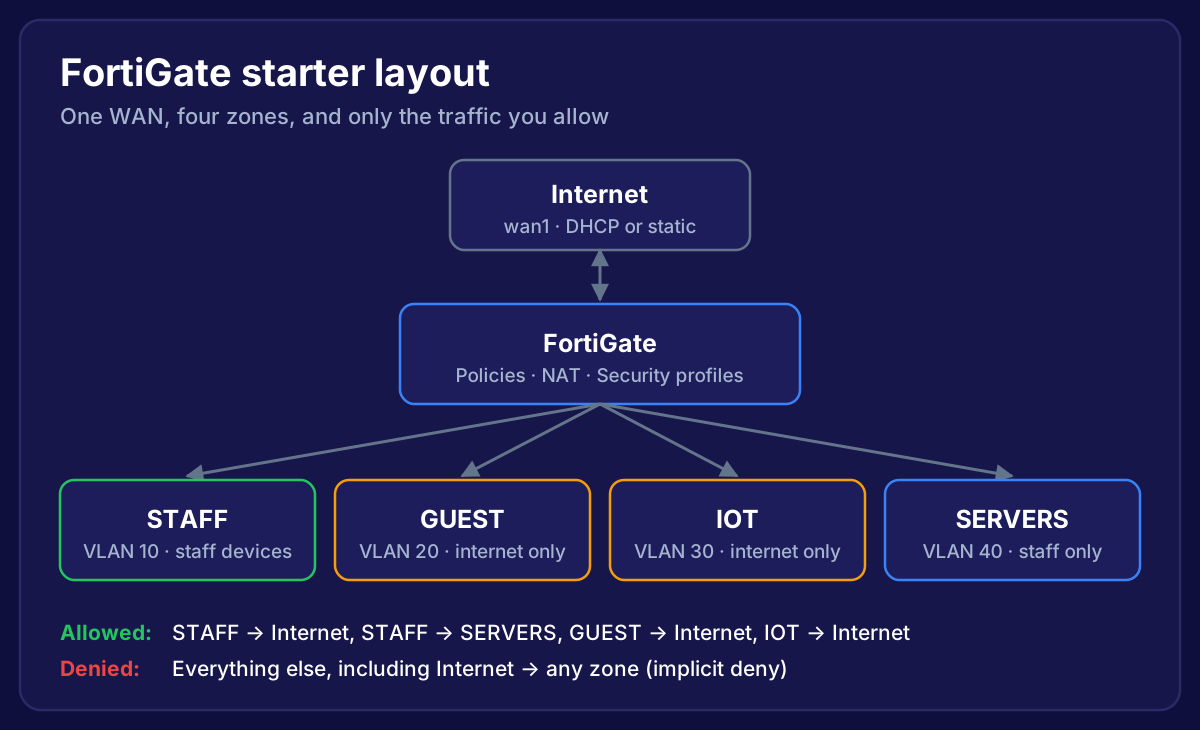
The brand matters less than the configuration. If you're on FortiGate, our FortiGate firewall configuration guide walks through the setup with the actual commands.
Frequently Asked Questions
How long does configuring a firewall take?
For a small office with a clear plan, the setup takes half a day to a day. The planning and testing take longer than typing the rules.
Is the firewall on my ISP router enough for a business?
For a one-person business, it can be. Once you have staff, guests, cameras or card payments, you'll want zones, VPN and logging, which ISP routers rarely do well.
Do I need a firewall for Cyber Essentials?
Yes. Every device in scope must be protected by a correctly configured firewall, and the scheme sets out specific requirements for admin access and inbound rules.
How often should firewall rules be reviewed?
Every quarter as a routine, and whenever someone leaves, a supplier changes, or a system is retired.
What's the most common firewall mistake?
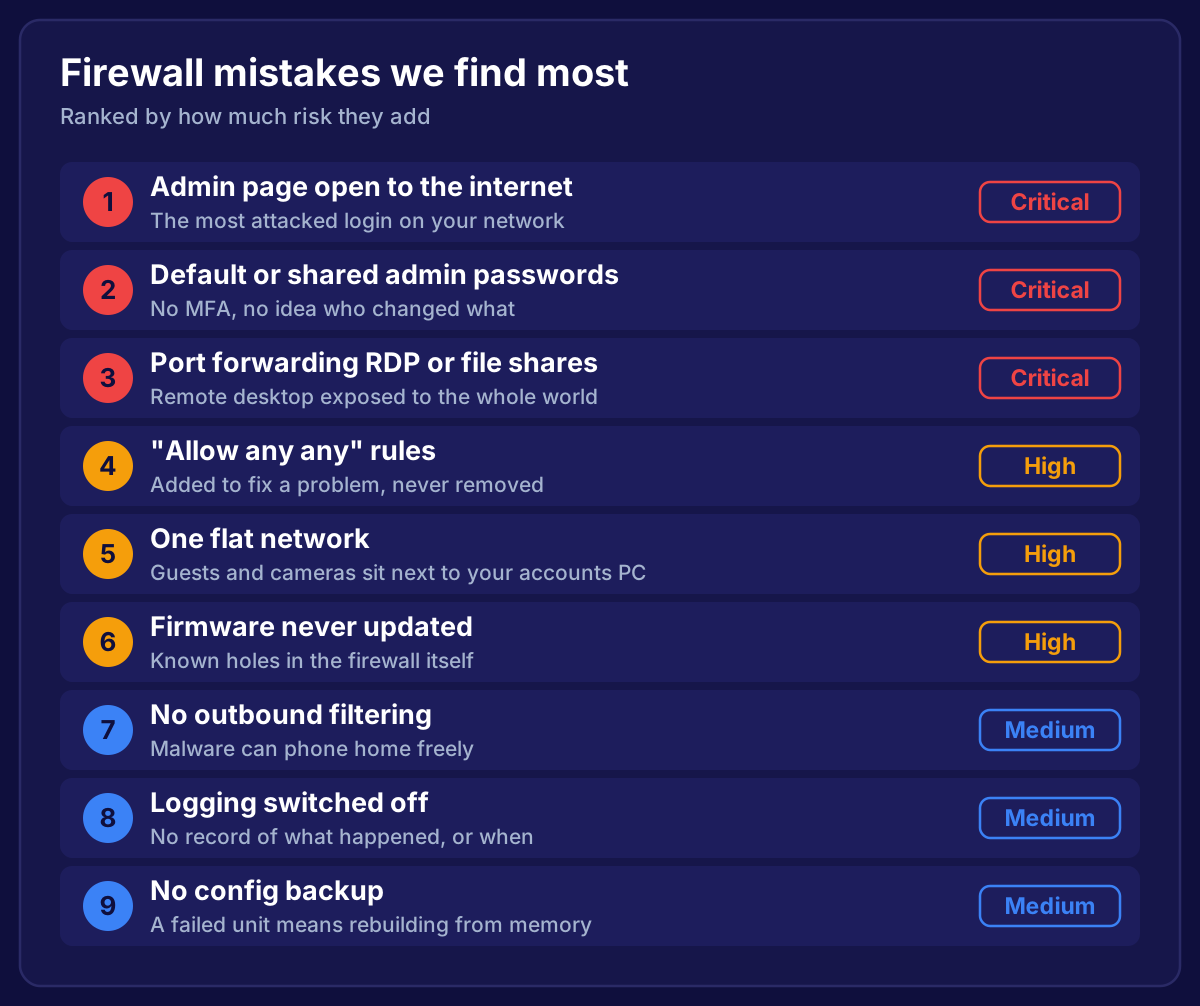
Leaving the admin page reachable from the internet, closely followed by forgotten port forwards. We list the rest in firewall configuration mistakes.
Not sure your firewall is set up properly?
We review and configure firewalls for small businesses across the South West. We'll check the admin access, the rules, the zones and the VPN, then fix what's wrong and hand you clear documentation. No jargon, and no pushy sales.
→ Book Your Free Firewall Consultation
Related Reading
- Firewall Rules Best Practices: How to Write Rules That Don't Leave Gaps
- 9 Firewall Configuration Mistakes That Leave Small Businesses Exposed
- How to Configure a FortiGate Firewall: Initial Setup Step by Step
- How to Configure the Firewall on Your Home Router
- Office WiFi Setup: Why Most Business Networks Fail